
Plan Modeling
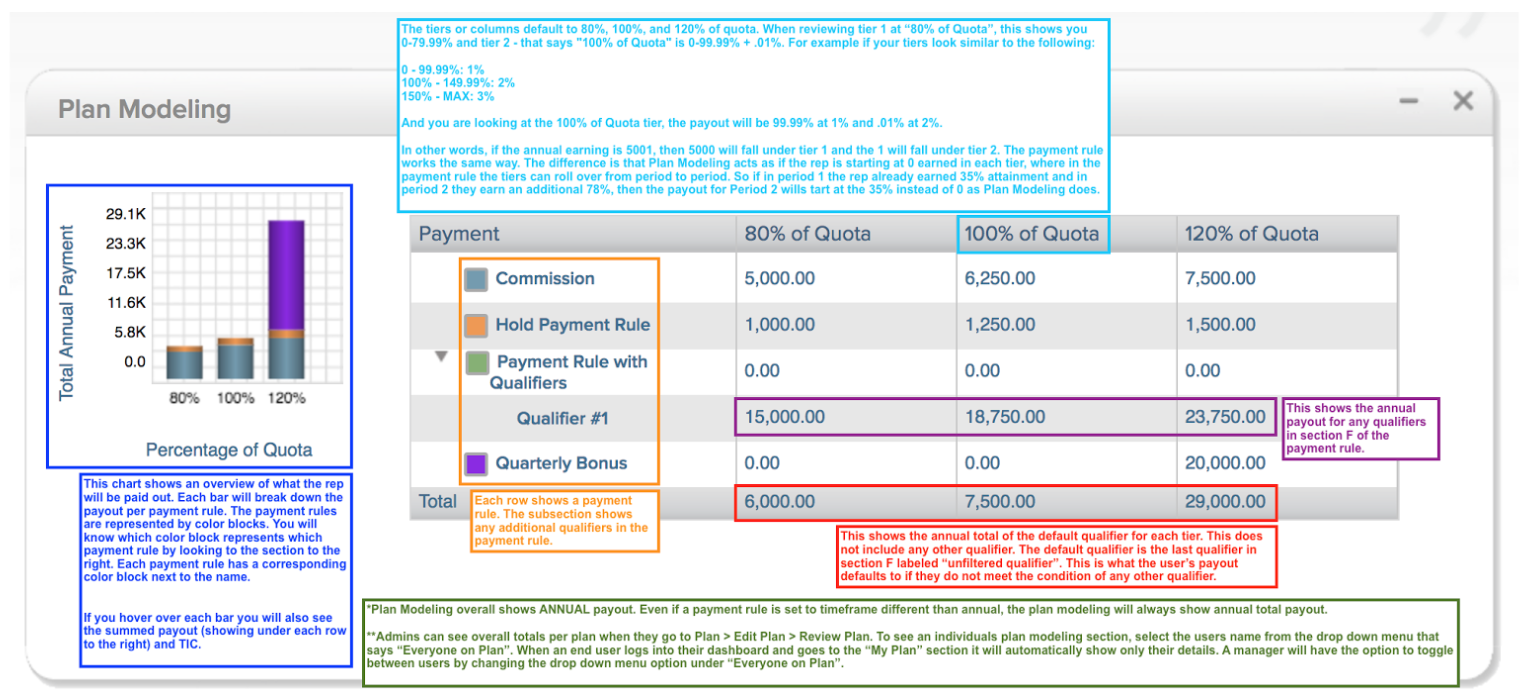 TIERS:
The tiers or columns in Plan Modeling default to 80%, 100%, and 120% of quota. When reviewing tier 1 at “80% of Quota”, this shows you 0-79.99%, and tier 2 - that says "100% of Quota" is 0-99.99% + .01%. For example, if your tiers look similar to the following:
0 - 99.99%: 1%
100% - 149.99%: 2%
150% - MAX: 3%
If you are looking at the 100% of Quota tier, the payout will be 99.99% at 1% and .01% at 2%.
In other words, if the annual earning is 5001, then 5000 will fall under tier 1 and the 1 will fall under tier 2. The payment rule works the same way. The difference is that Plan Modeling acts as if the rep is starting at 0 earned in each tier, wherein the payment rule the tiers can roll over from period to period. So if in period 1 the rep already earned 35% attainment and in period 2 they earn an additional 78%, then the payout for Period 2 will start at 35% instead of 0 as Plan Modeling does.
GRAPH:
This chart shows an overview of what the rep will be paid out. Each bar will break down the payout per payment rule. The payment rules are represented by color blocks. You will know which color block represents which payment rule by looking at the section to the right. Each payment rule has a corresponding color block next to the name.
If you hover over each bar you will also see the summed payout (showing under each row to the right) and TIC.
ROWS:
Each row shows a payment rule. The subsection shows any additional qualifiers in the payment rule.
SUMMED TOTAL:
This shows the annual total of the default qualifier for each tier. This does not include any other qualifier. The default qualifier is the last qualifier in section F labeled “unfiltered qualifier”. This is what the user’s payout defaults to if they do not meet the condition of any other qualifier.
PAYMENT CATEGORY:
This shows the annual payout for any qualifiers in section F of the payment rule.
*Plan Modeling overall shows ANNUAL payout. Even if a payment rule is set to timeframe different than annual, the plan modeling will always show annual total payout.
**Admins can see overall totals per plan when they go to Plan > Edit Plan > Review Plan. To see an individual's plan modeling section, select the user's name from the drop-down menu that says “Everyone on Plan”. When end-user log in to their dashboard and go to the “My Plan” section it will automatically show only their details. A manager will have the option to toggle between users by changing the drop-down menu option under “Everyone on Plan”.
Things to note:
- Your plan modeling will show 0 across the board for any Payment Rules that are not associated with a Quota (Section C).
- The above will not be true if the associated Credit Rule is associated with a Quota, even if the Payment Rule is not, plan modeling will show numbers.
- If your PR is using qualifiers, the line in plan modeling that is "modeling" the unfiltered qualifier will show up as 0 across the board unless your unfiltered qualifier is not set up with a 0 rate.
Comments
0 comments
Article is closed for comments.